Browsing and Managing Studies on PACS Servers
The VisioVIEW Study Browser is populated based on the selected target PACS server or the VisioVIEW Local Database. View and access the contents of the selected server by using the Study List.
Study List
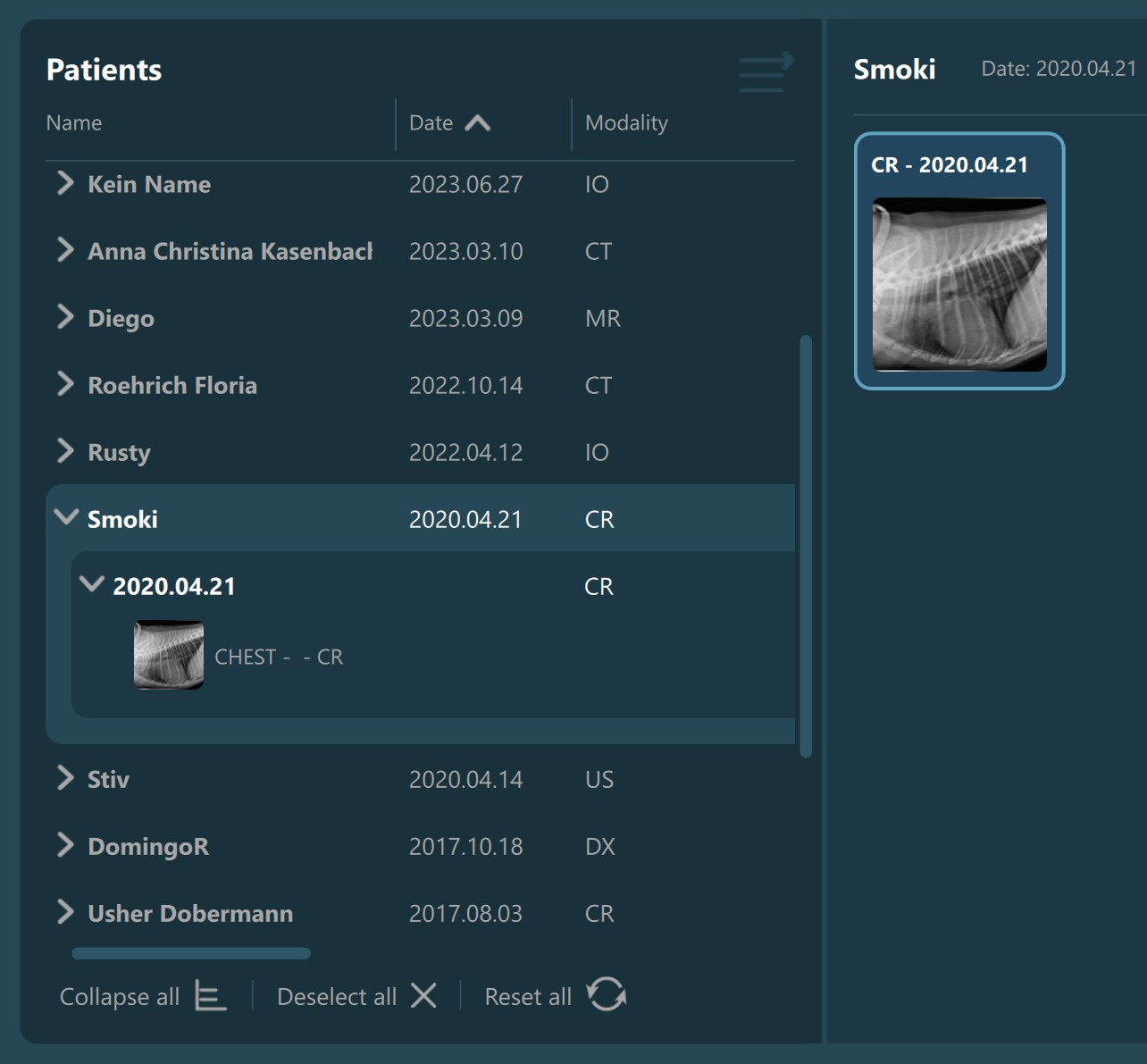
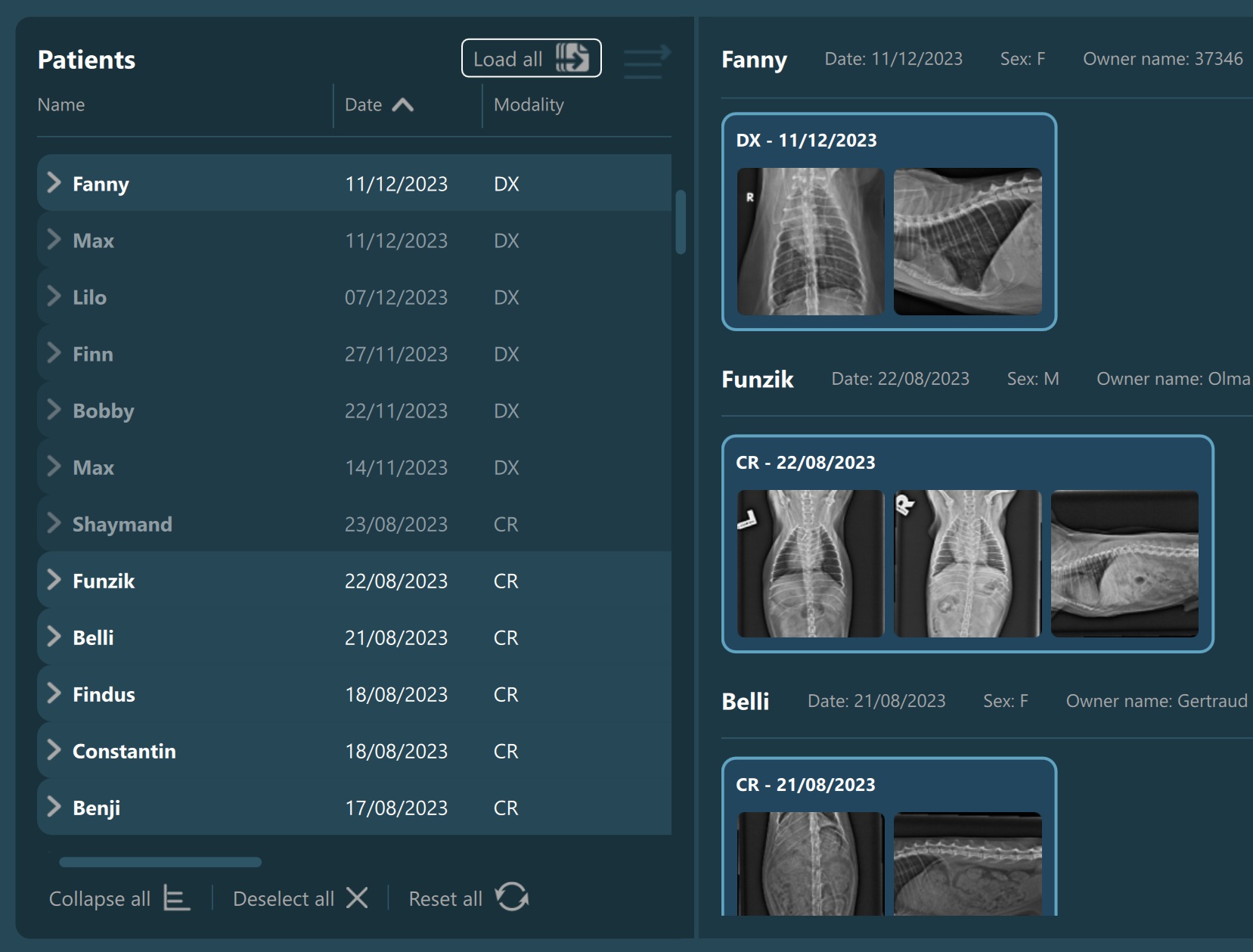
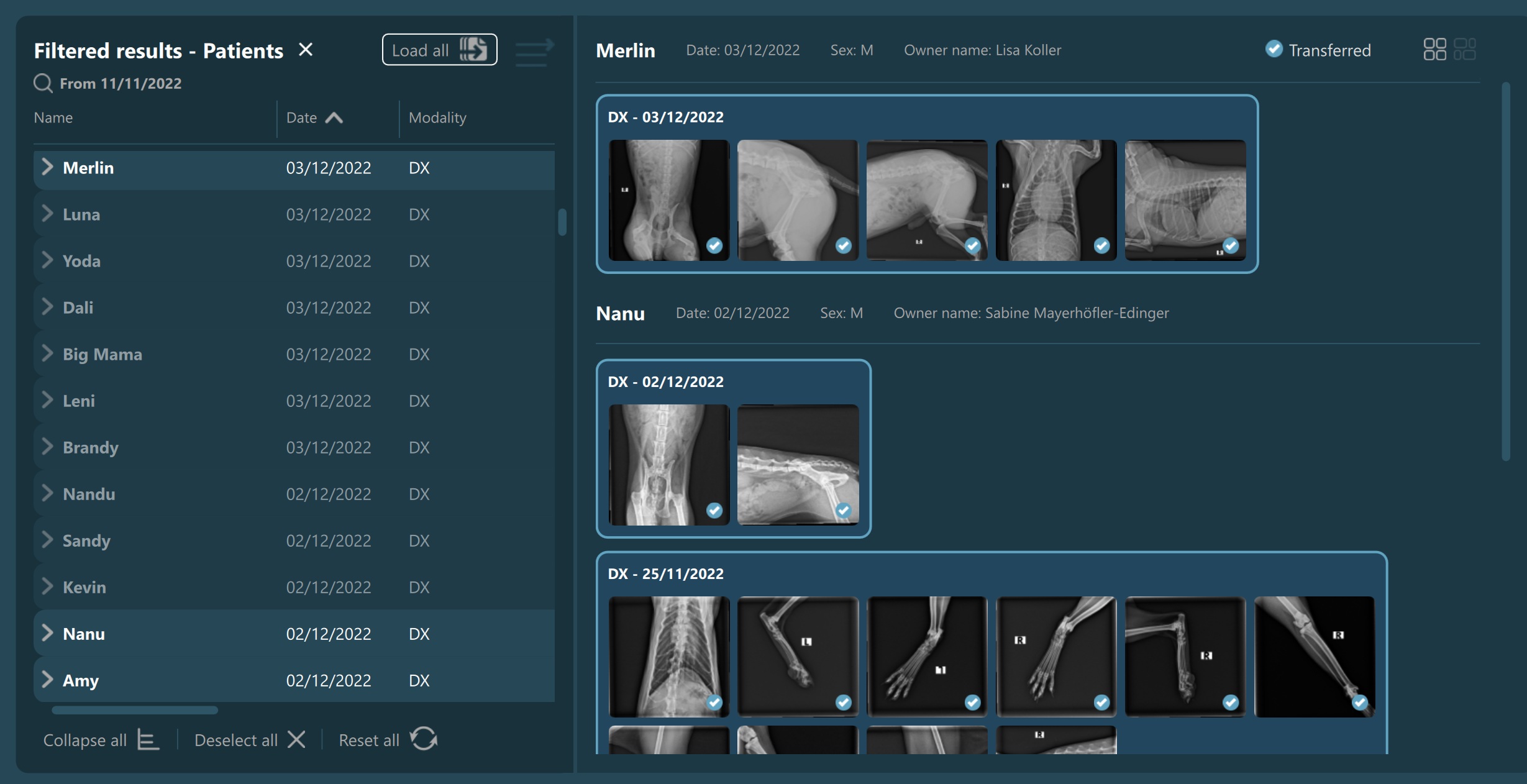
The Study List is located on the left side of the Study Browser window. All studies or patients (depending on the active mode) from the selected server will be displayed in the study list, based on the configuration of the DICOM servers.
Expand an item in the Study List by pressing the arrow next to the its name, which reveals its contents based on the DICOM hierarchy in the Study Browser.
Selecting patients/studies in the Study List automatically requests all related information to their series and instances from the chosen server. Limit the number of data requests by using the following configuration parameter in the advanced settings.
The selected patients/studies that have pending data requests will be less opaque in the Study List. To activate all pending requests, press the Load all button located in the top header of the Study List.
Important
Exporting the selected studies will automatically activate all batched requests during the export process. All other actions will only affect the patients/studies whose information has already been loaded.
Navigating the Study List
To navigate through the Study List, simply use the mouse to select specific patients, studies, or series by clicking on them. Use the mouse scroll or the Study List scrollbar to list through the available studies.
Additionally, if a mouse is not available, users can use the keyboard’s arrow keys to navigate through the list.
↓Use the down arrow button to select the next patient/study/series in the list.
↑Use the up arrow button to select the previous patient/study/series in the list.
→Use the right arrow button to expand the selected patient/study to the next hierarchy level.
←Use the left arrow button to collapse the currently selected patient/study.
Users can select multiple patients/studies in the Study List for preview by holding down the CTRL or Shift keys while selecting the items using the mouse or keyboard.
Hold
CTRLto toggle the selection of items in the list.Hold
Shiftand select an item to simultaneously select a continuous range of items between the new and previous selected item.Hold
CTRL+Shiftto extend the current selection with a new continuous range of items between the new and previous selected item.
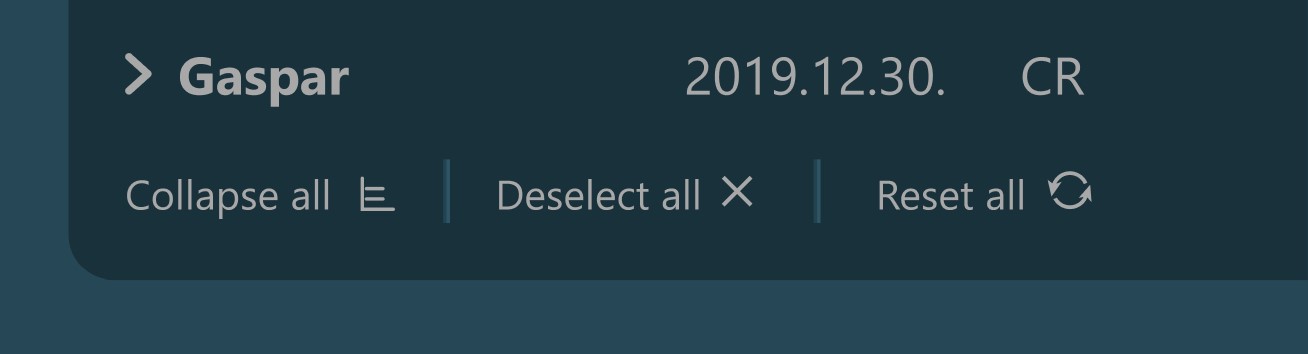
VisioVIEW also offers options to reset the Study List, available at the bottom of the list.
Collapse All: Collapses all expanded items in the list, keeping the active selection.
Deselect All: Deselects all items in the list, keeping the expansion of the hierarchy.
Reset All: Collapses and deselects all items in the list.
The default columns in the VisioVIEW Study List are Name, Date, and Modality.

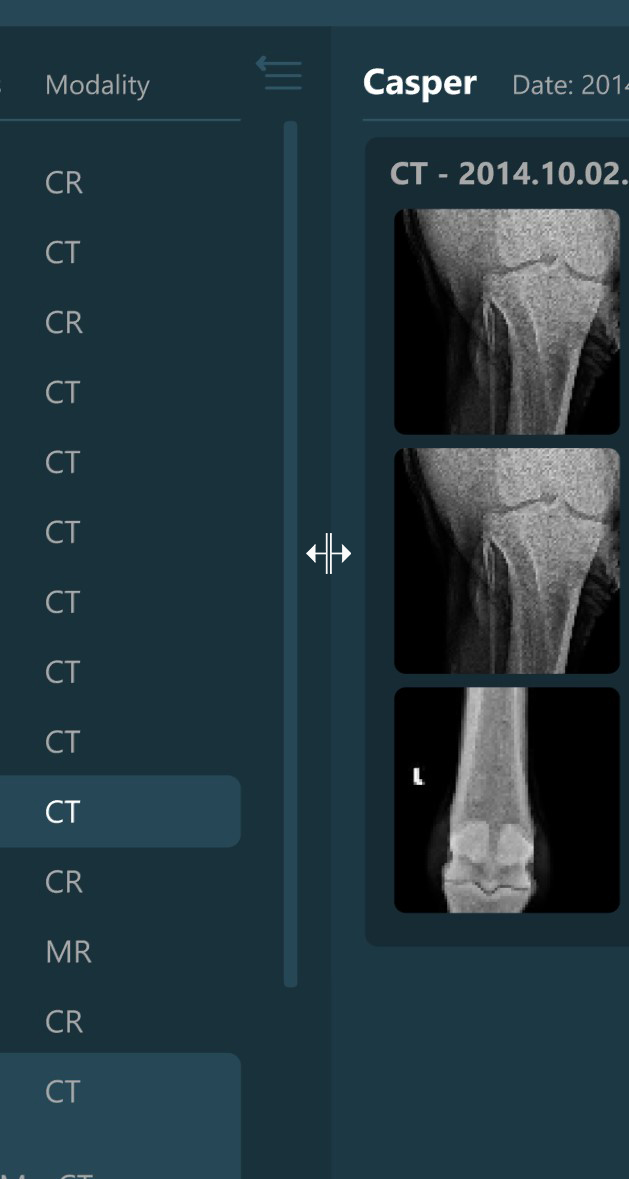
Expand icon in the top right corner of the Study List to reveal the other available columns.The Study List information and items can be ordered by each available column.

Users also have the freedom to resize the Study List section by dragging the right edge of the section in the preferred direction.
Preview Pane
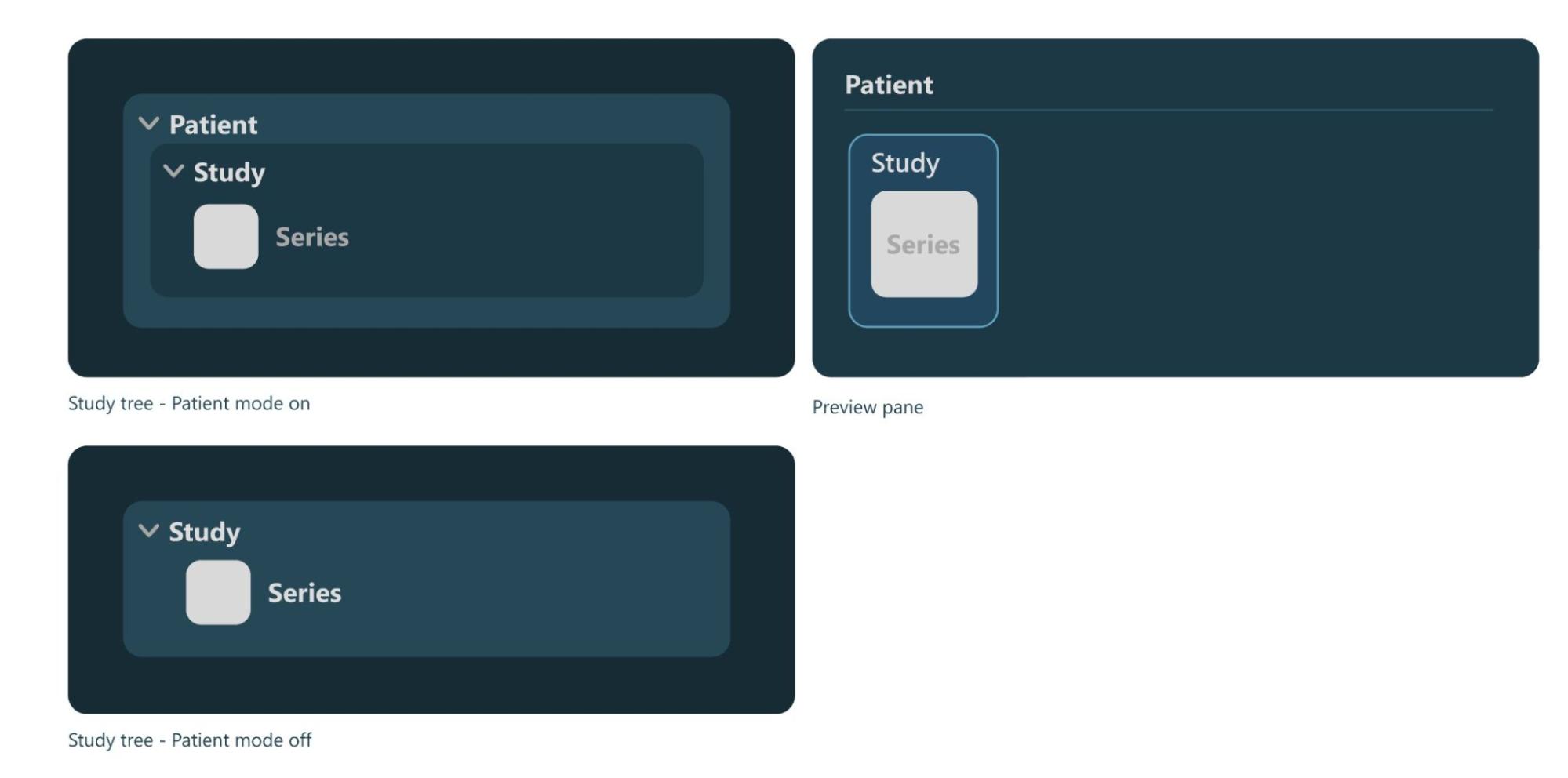
Selecting a patient, study, or series from the Study List opens them and their contents in the Preview Pane, located on the right side of the Study Browser window. In the Preview Pane, the items are separated into sections based on their patient information.
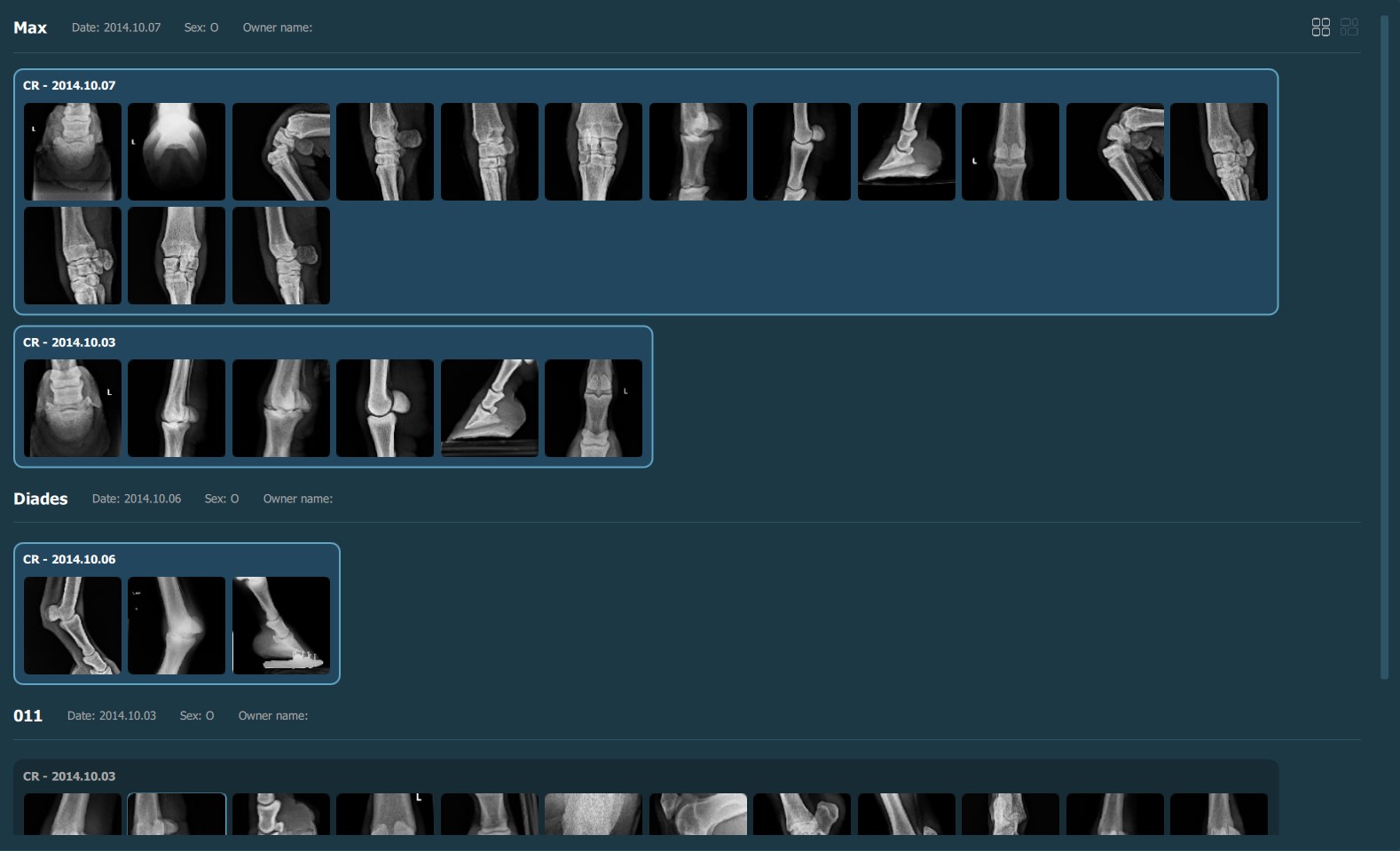
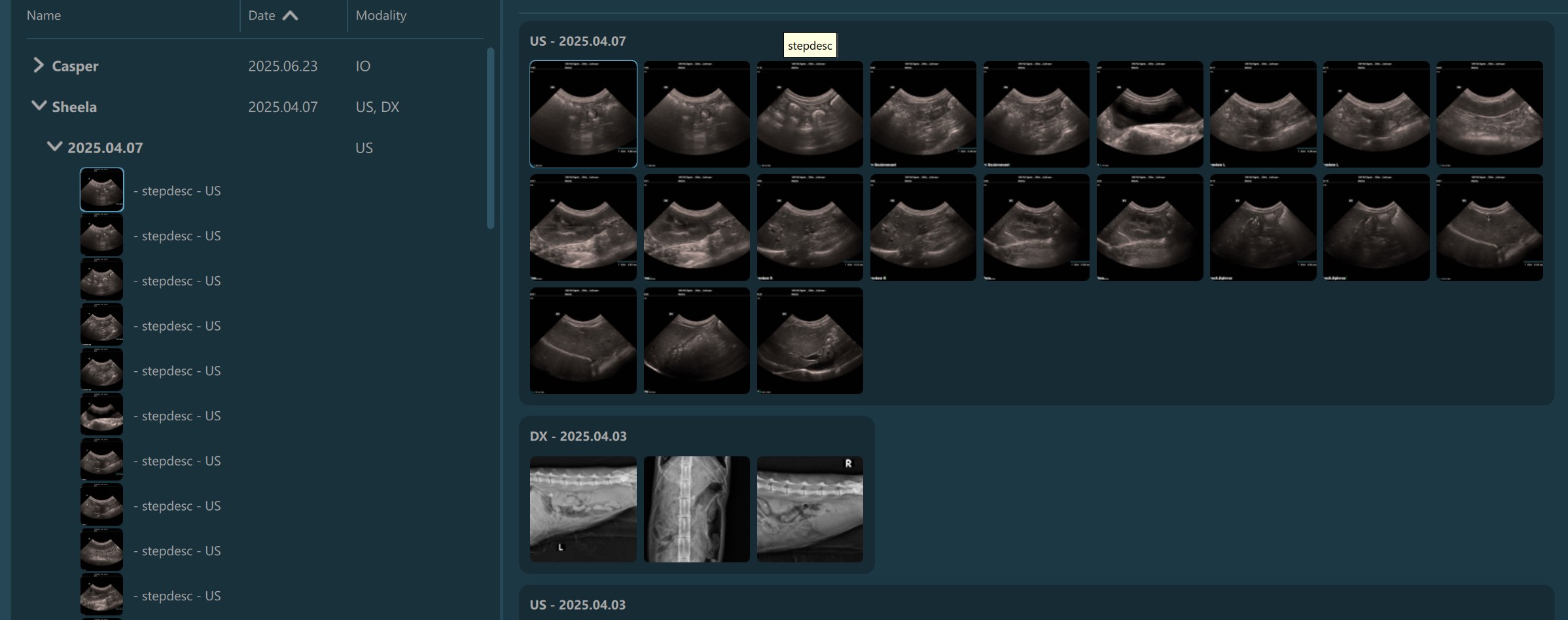
The heading of each section shows the patient name, the latest related study date, patient sex, and owner name. Studies are shown as image groups containing the series as image previews. Each study is highlighted by its modality and date. To view the series description of each series, hover over the desired image preview.
The top right corner of the Preview Pane offers the users the ability to switch the thumbnail preview between unified or keeping the original aspect ratio of the image.
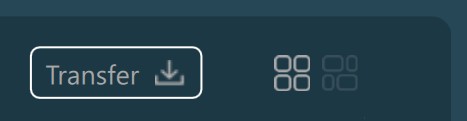
Additionally, if the selected server was configured to allow users to manually download images, the Transfer button is also available in the Preview Pane. More information on image transfers can be
found in the following section.
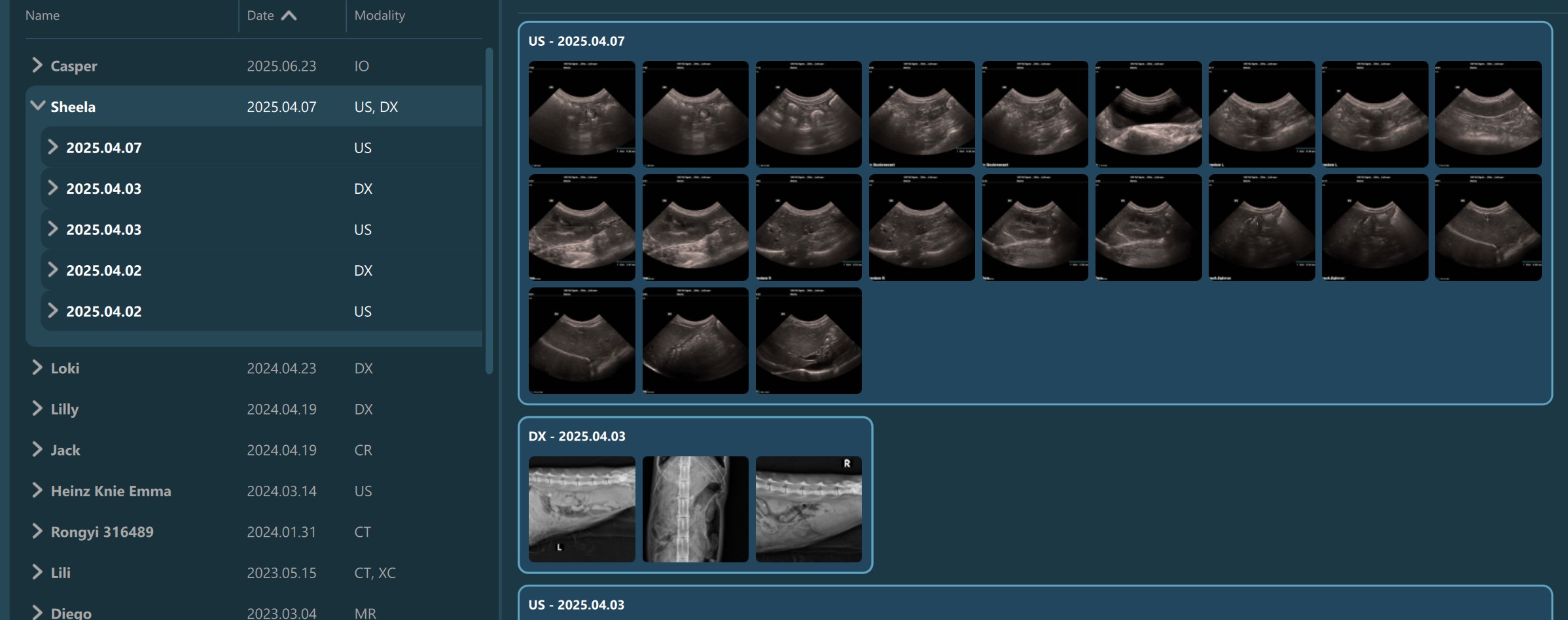
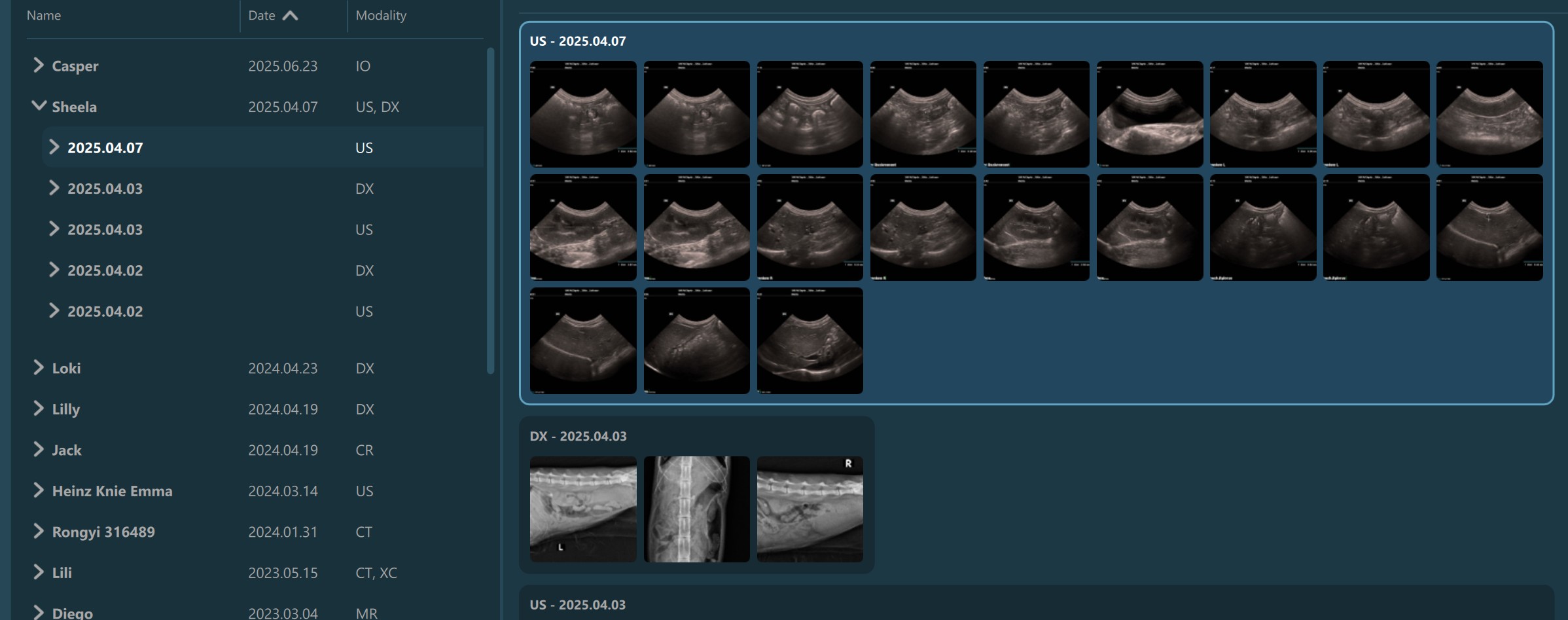
Similar to the selection in the Study List, users have the ability to select patients, studies, or individual series. A highlighted selection in the Preview Pane indicates the active selection in the Study List.
The Preview Pane can also be used to extend or narrow down the selection from the Study List. To select/deselect items in the Preview Pane simply press on them with the mouse.
Selected patient (all studies belonging to the patient are also selected):
Selected individual studies:
Selected individual series/images:
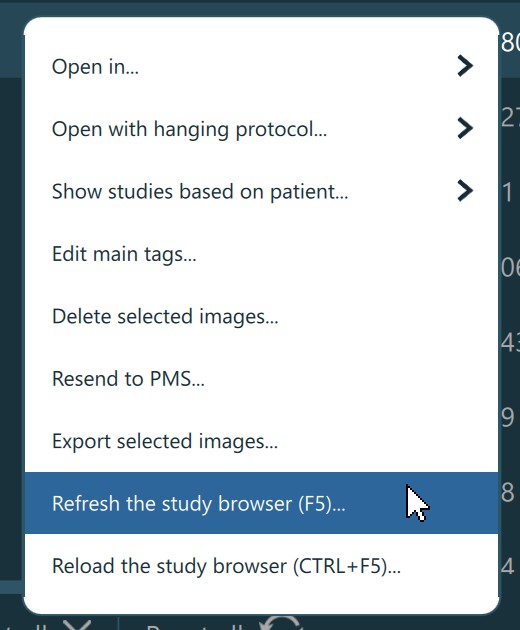
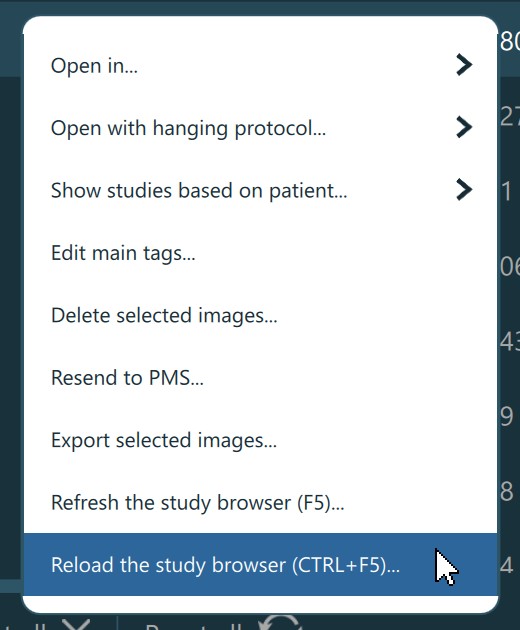
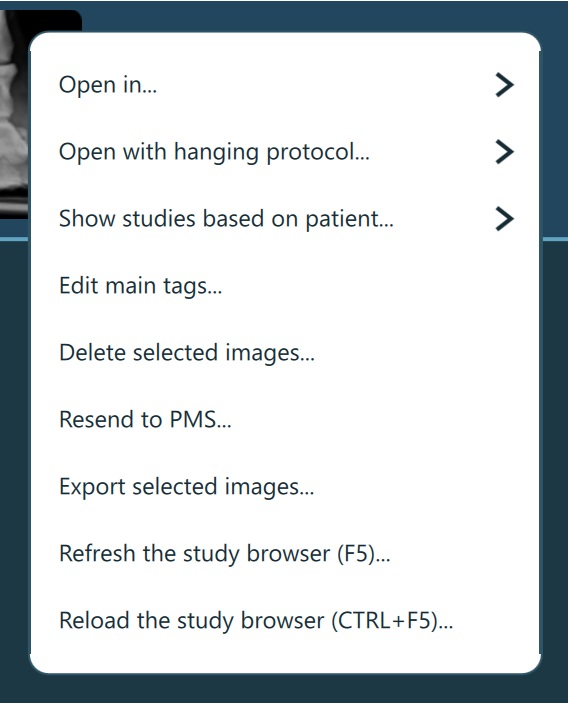
Some of the available actions in the Study Browser toolbar become available once a selection has been made in the Study List. The actions can also be activated through the Study Browser context menu, available using the right mouse click. The available actions in the software will be detailed in the following sections.
Transfer Images
Servers configured to transfer images will save the DICOM files in the selected VisioVIEW data directory specified in the advanced settings. When using these servers, the top study browser toolbar contains an additional
Transfers button in the top right corner, indicating the ongoing and/or finished transfers of images, grouped by studies.
To access the current ongoing and/or finished transfers, simply press the button which will open the related popup. The latest requested transfers of images will always be shown at top of the list in the popup. The popup will show a maximum of
20 study transfers, and if more are required to be added, the software automatically removes the oldest ones from the list to accommodate space for new entries. Manually remove an entry from the popup by simply pressing the x button.
The overall progress of the ongoing transfer of images is indicated below the button, while the progress of each study is indicated when opening the popup.
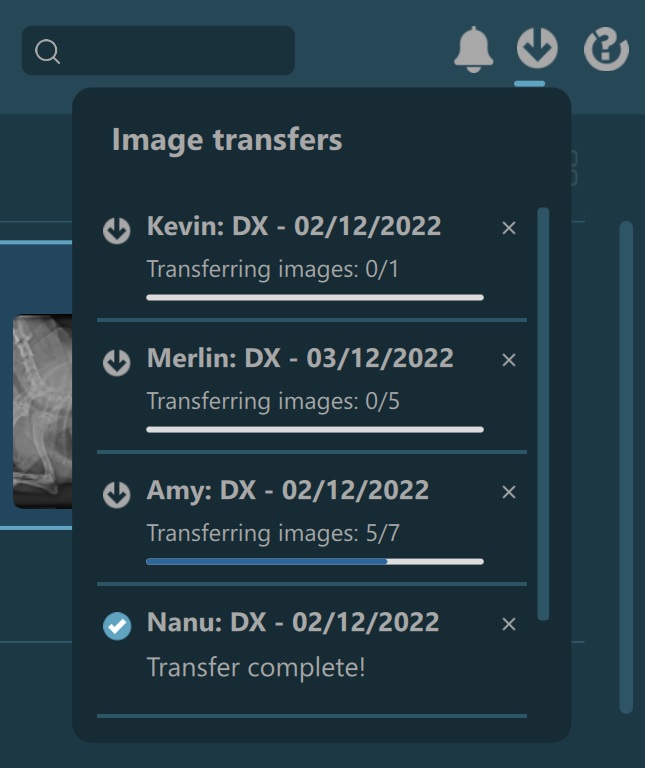
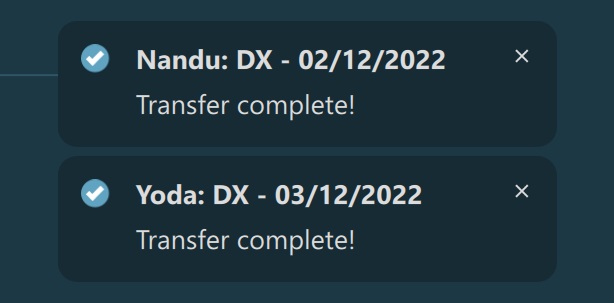
Completed transfers of images are indicated in two different ways in VisioVIEW. The Transfers button has a blue dot in the top right corner to indicate unopened completed transfers, which is automatically removed as soon as the user opens the
popup. In addition, as soon as a transfer of a study is completed, a notification of the completed transfer pops up in the bottom right corner of the Preview Pane, with the latest notification stacking up above the older ones. The notifications
are visible for about three seconds before automatically disappearing.
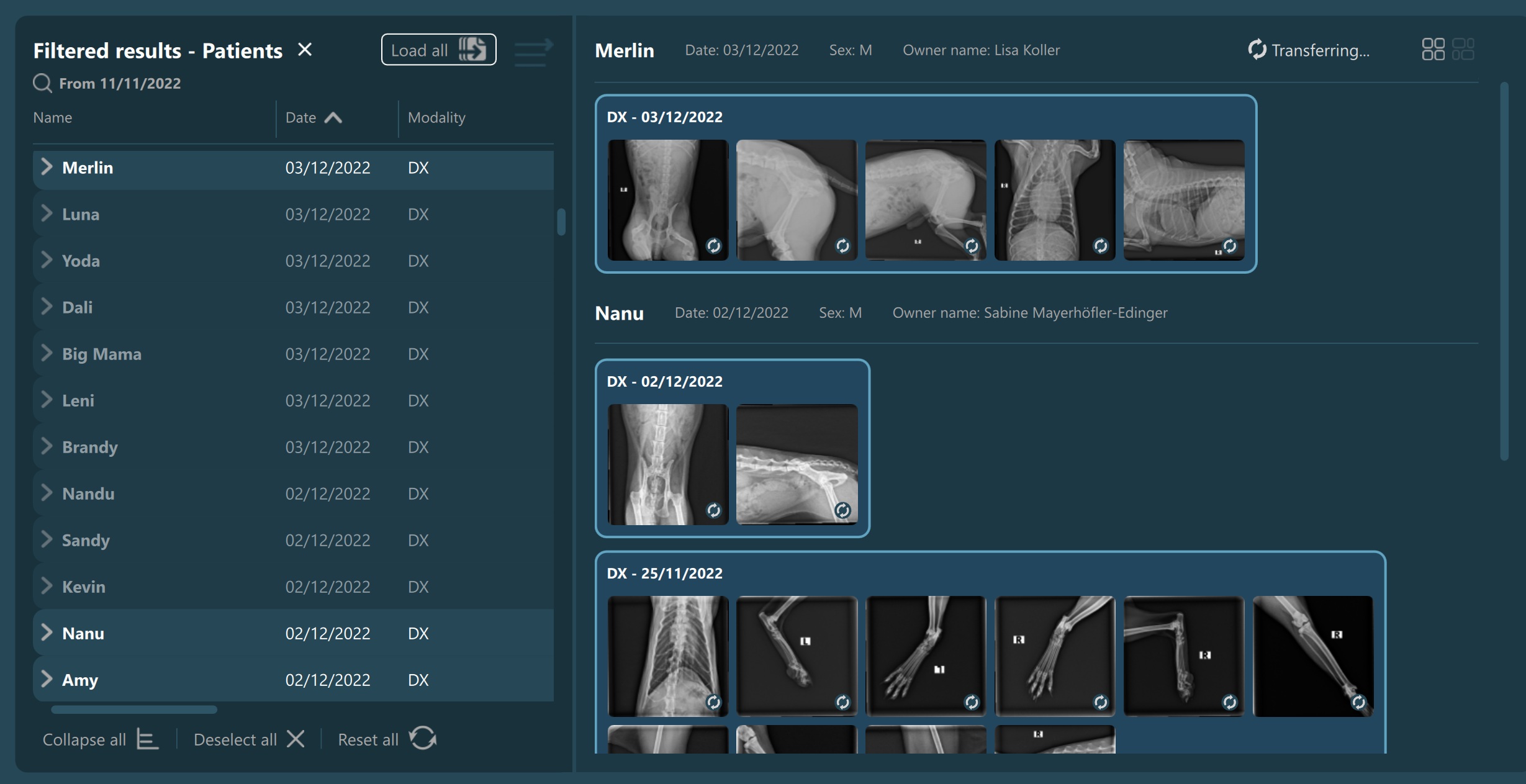
Additionally, when images are being transferred, a Transferring… label is shown in the heading of the Preview Pane. Moreover, each series in the Preview Pane has its own state indicating whether the transfer is ongoing or it has finished. When all of the selected images have been transferred, the label in the heading of the Preview Pane is changed to Transferred as well.
Transfer of images is in progress:
Transfer of images has been completed:
Important
When performing any of the study browser toolbar actions that require the DICOM images to be transferred, and if the server is configured to transfer images via the Transfer button, the process of transferring images is automatically
started as soon as the action is triggered.
Finding Studies
VisioVIEW offers users an extensive set of tools to help manage DICOM studies in the Study Browser. Users have the freedom to order the studies by specific parameters, filter the results in the Study Browser, or perform deep searches of the entire PACS database.
Order & Sort Studies
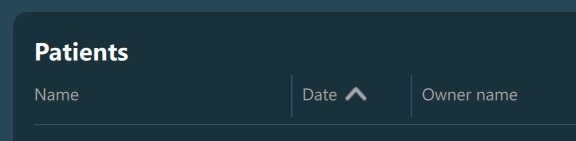
The studies can be ordered and sorted based on the information in each of the columns in the Study List. The default order of studies is descending by study date, ensuring that the latest studies are always at the top of the list.
When the studies are sorted by a specific column, an arrow icon appears next to the column heading. Down arrow icon indicates descending order, while the up arrow icon indicates an ascending order. Press on the active order heading to switch the order in the opposite direction.
Search Mode
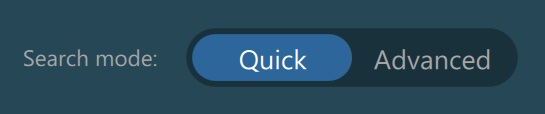
The VisioVIEW software allows users the choice of their preferred mechanism when browsing the Study List and the PACS database by offering a Quick and an Advanced search mode. Select the default active search mode on application startup
through the VisioVIEW settings.
Quick Search
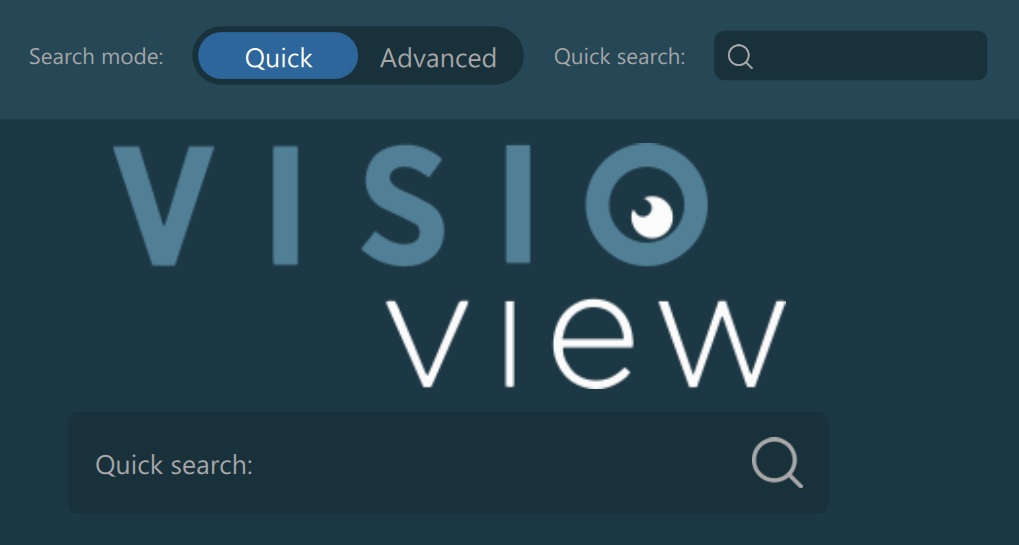
Users can easily search studies by using the Quick Search input field located in the Study Browser toolbar, or using the Home Screen’s search bar.
The Quick Search input field filters out the studies by matching either the patient name, owner name, or patient ID parameters. The Study List is automatically filtered as soon as the user starts typing into the field, after the initial
filter timer has elapsed.
To clear the active filter, click the x icon at the end of the input fields.
Advanced Search
Activate the Advanced search mode from the Study Browser toolbar to access the available options. The same panel can also be accessed on the Home Screen as well.

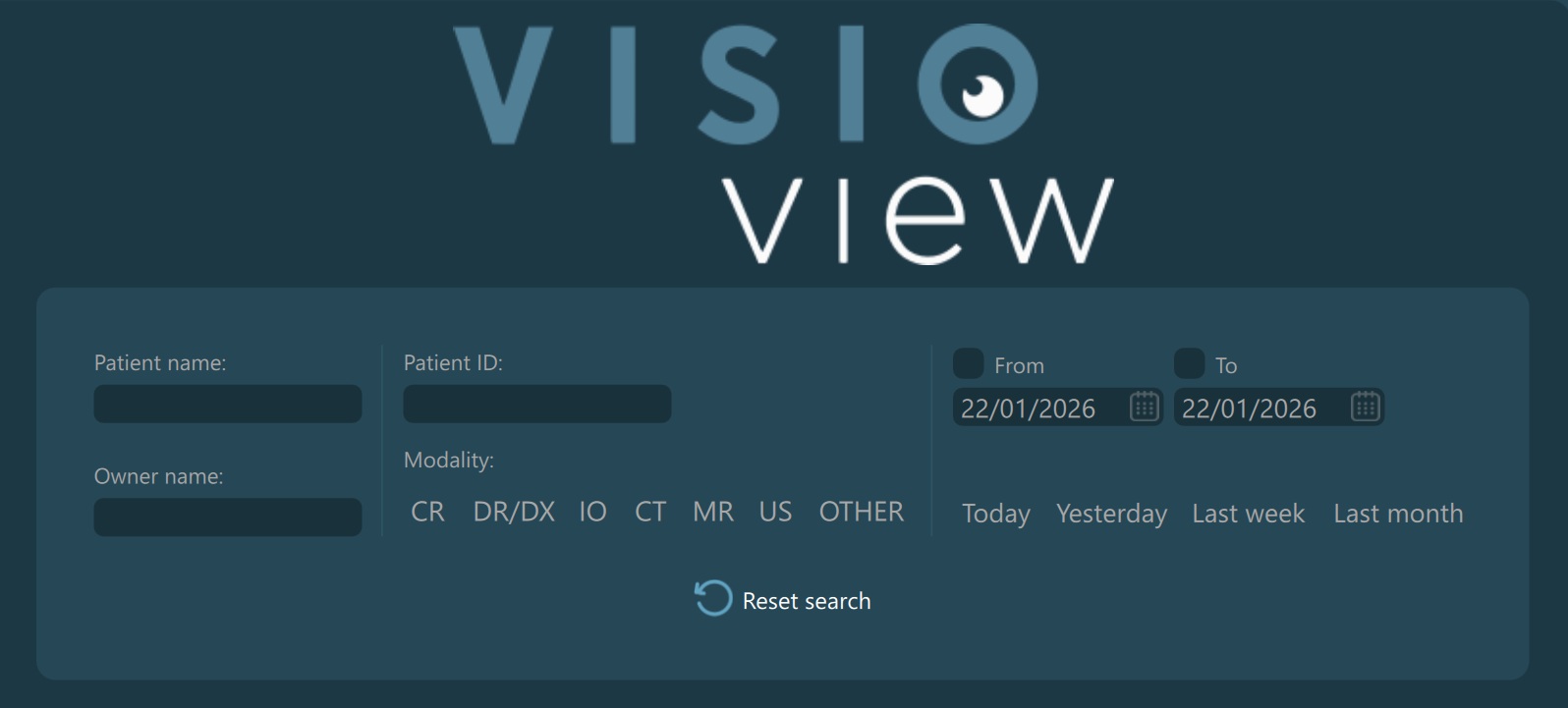
Using the advanced search mode, users can filter the studies with more precision and have the ability to combine multiple conditions together.
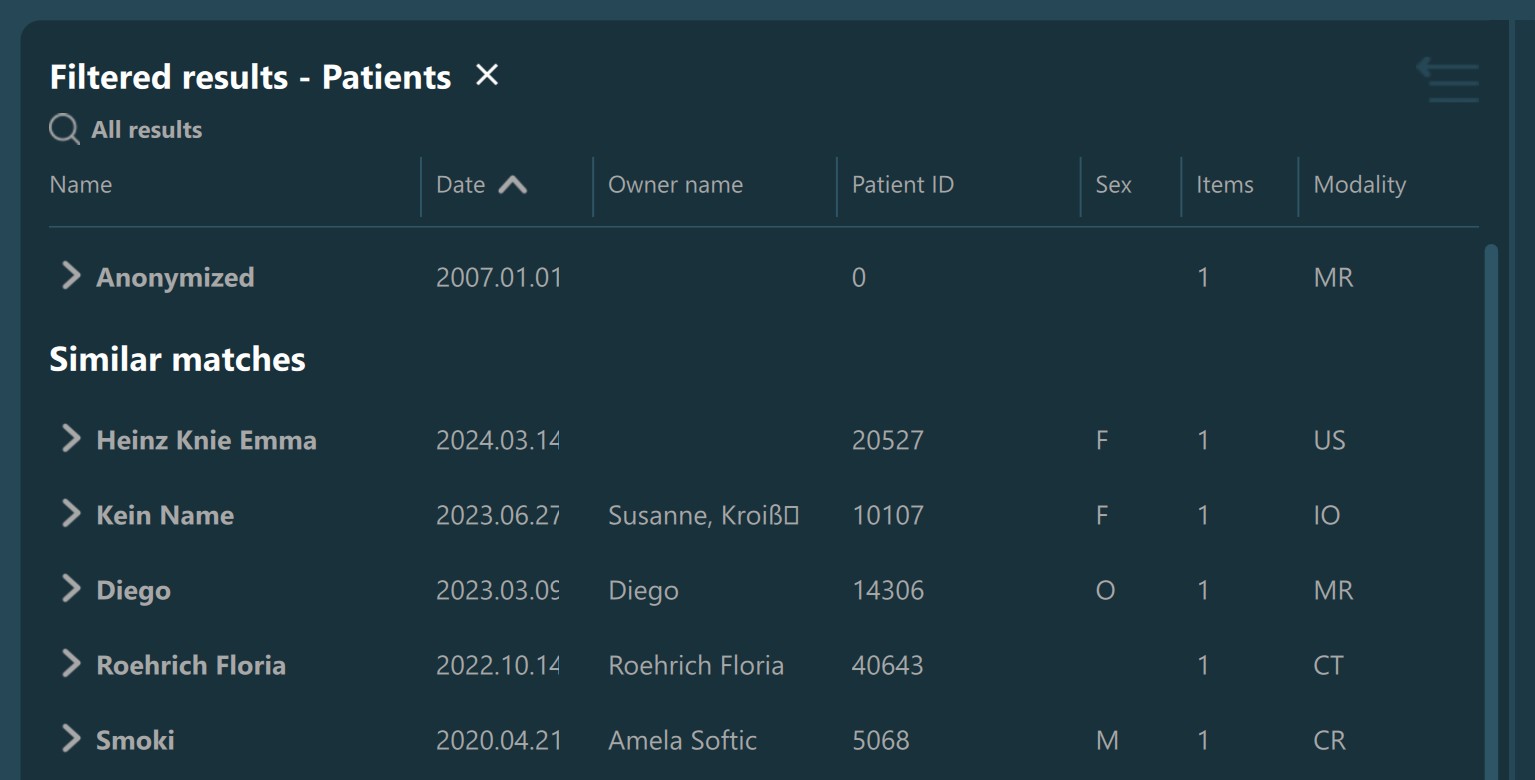
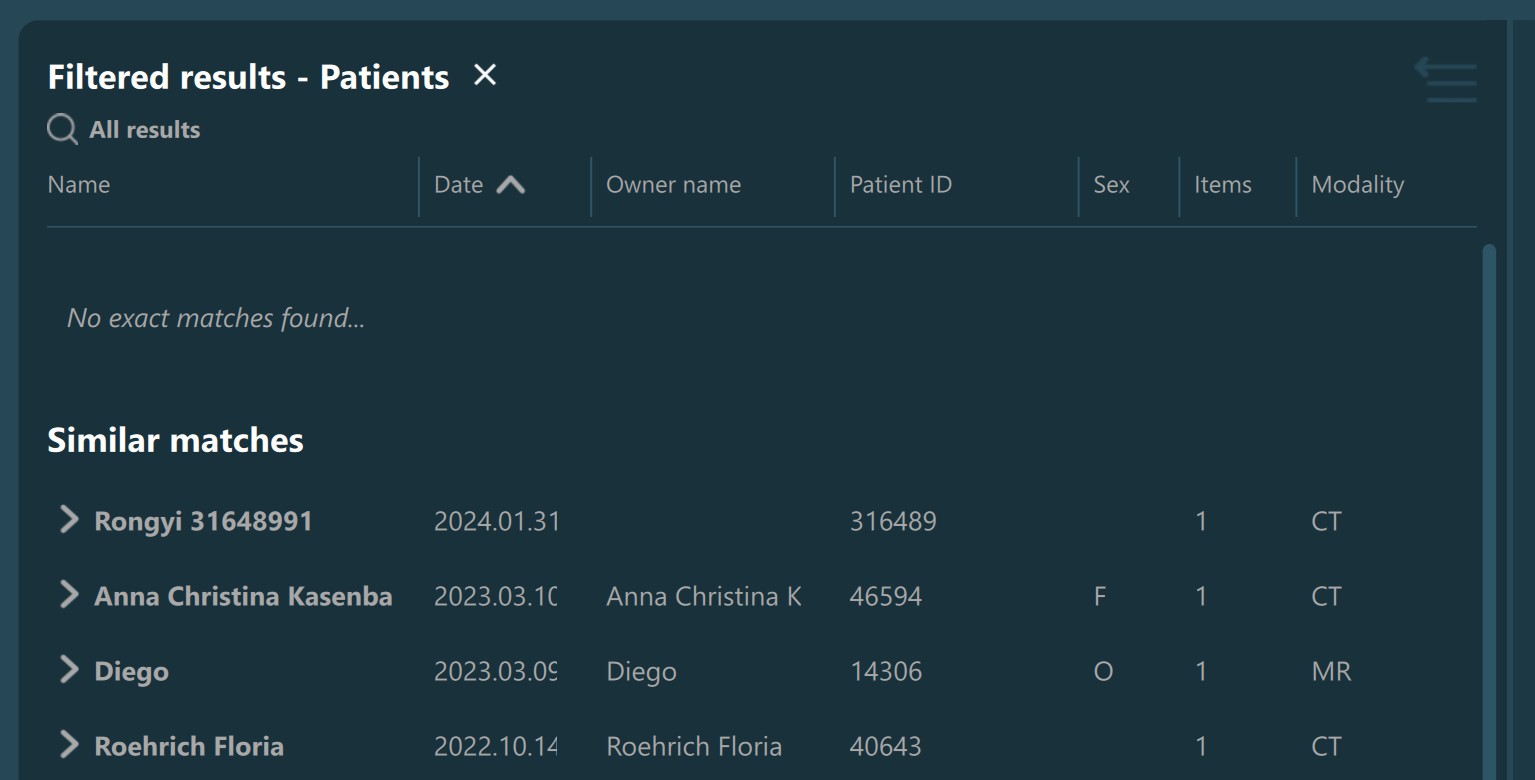
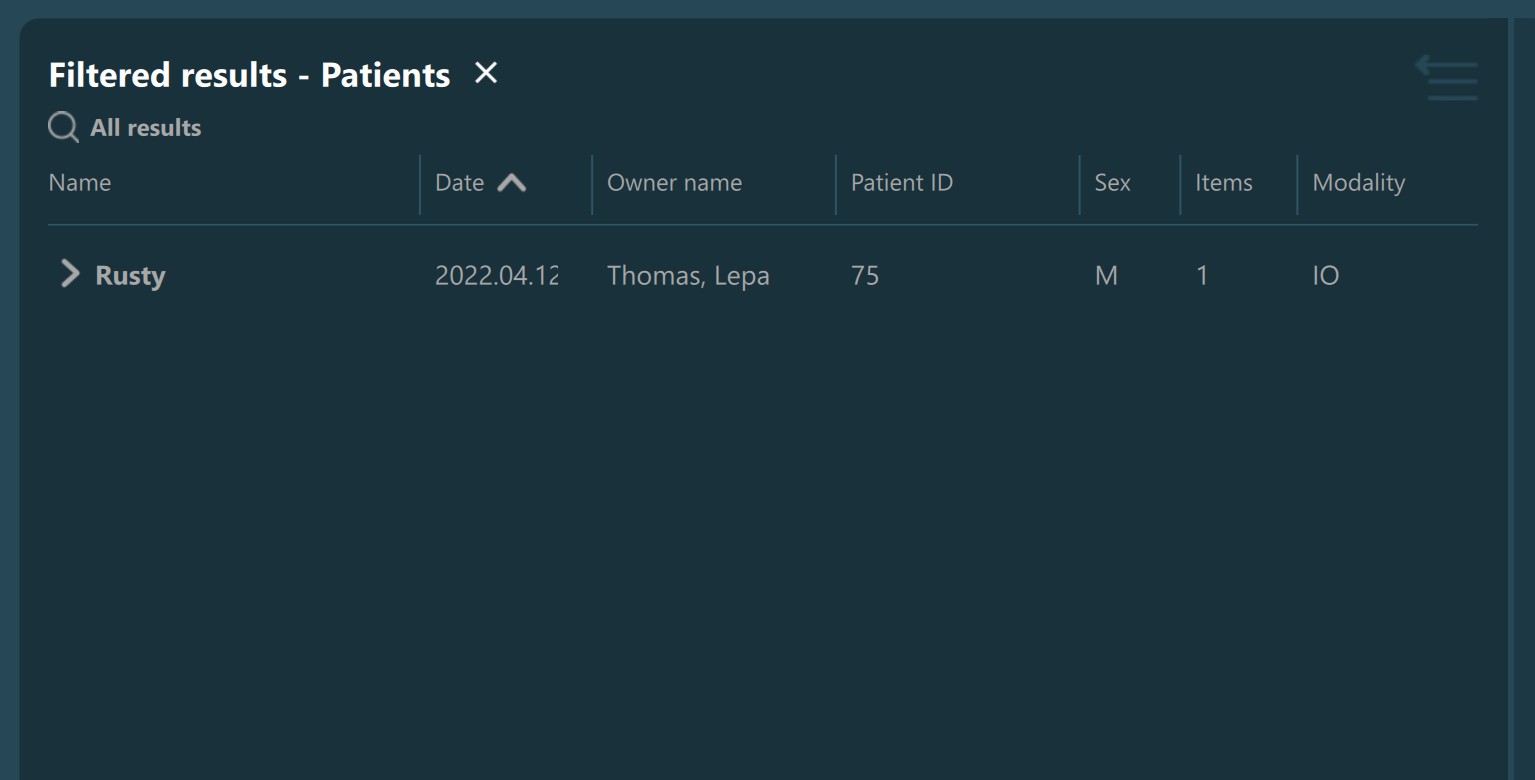
Patient name, Owner name, Patient ID: Use the input fields to specify the value of the following parameters. The Study List is automatically filtered after the initial filter timer has elapsed. When using these parameters, the studies in the Study List are separated into exact and similar matches.
Modality: Only items with the selected modality will be displayed in the list. Users can select multiple modalities by toggling the specific buttons of the advanced filters. Selecting
OTHERdeselects all other selected modalities and vice versa.Study Date: Filter the studies in the Study List by specifying exact date ranges, or choose some of the predefined intervals.
Filtering studies by their date is the most advanced filter metric the VisioVIEW software offers. Users can choose one of the predefined date intervals (Today, Yesterday, Last Week, and Last Month), or specify their own date intervals
by using the From and To sections.
To activate any of the
FromandTointervals, select a date from the VisioVIEW calendar and toggle the specific checkbox on.Filtering studies only by the
Frominterval will show all studies between the selected study date and the most recent study.Filtering studies only by the
Tointerval will show all studies between the oldest available study and the selected study date.Filtering by specifying both
FromandTointervals defines an explicit interval which the studies are filtered by.
Additionally, the study date advanced filter has a special effect when the selected server has a configured date filter. More information can be found in the following section.
Filtered Study List information with exact and similar matches found:
Filtered Study List information with only similar matches found:
Filtered Study List information with only exact matches found:
Filtered Study List information with no exact and similar matches found will display the No matches found… entry in the Study List.
Reset Advanced Filters

Similar to the quick search input fields, clear the condition of the active filter by pressing the x icon at the end of the input fields
To deactivate a selected modality filter, simply toggle the active button again.

Deactivate the date filters by toggling either the From or To checkboxes off.

To completely reset all active filters in the Study List, press the Reset search button at the right end of the Advanced Filters panel.
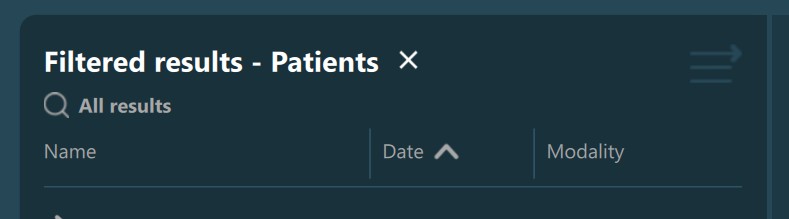
Additionally, all advanced filters can also be reset directly from the Study List header, by pressing the x button next to the filtered results header.
Search Full Database
The study date filters in the Advanced Filters panel can be combined with the date filter of the selected server to search the entire PACS database. The date filters in the Advanced Filters panel are set by default based on the configured settings for the server. However, users still have the ability to overwrite these filters if a complete search is necessary.
By default, to use the advanced filters when the server has a dedicated date filter configured, users must press the Search locally button to activate the selected filters. Automatic filtering is no longer applied by the software in
these cases. To continue filtering studies locally by the From date filter, choose a date which is part of the configured server date interval.

To query the entire PACS database, users must choose a date from the From date filter that is before the beginning of the server date interval, or deactivate the From date filter. The VisioVIEW calendar specifically indicates the dates
which are part of the server date interval, letting users know exactly which dates activate the full database search.
Once all filters have been correctly configured for a full database search, press the Search button to query the entire PACS database. The number of queried studies from the PACS database can be limited in the DICOM server settings.

When performing full database searches, the data information specified in the Study Browser information bar is updated to represent the active results based on the queried studies. To reset the queried search, users must reset all active filters.
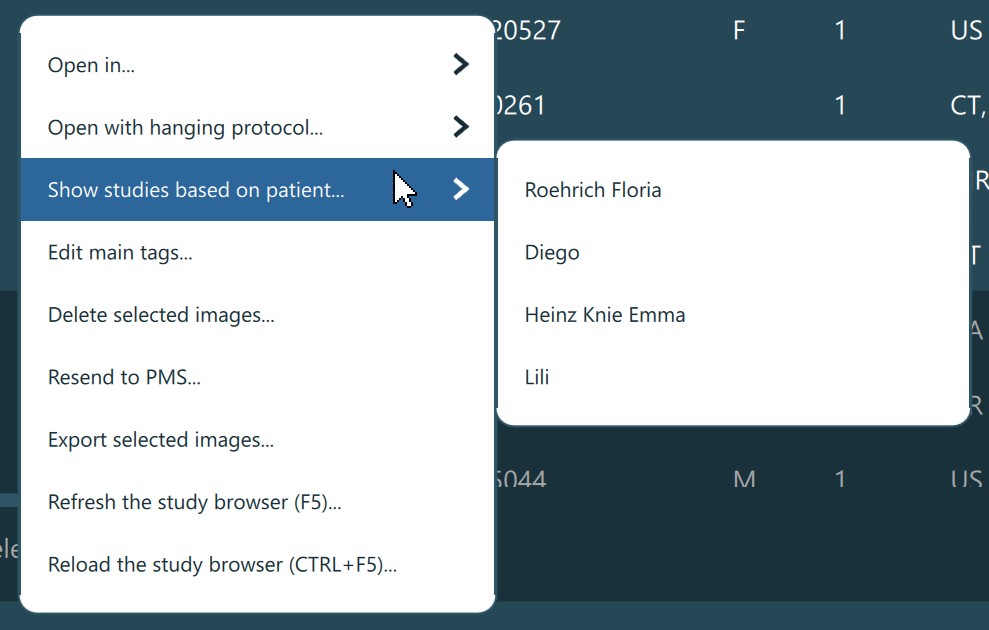
The full database search can also be performed from the Study Browser context menu by choosing the Show studies based on patient... option, and picking the appropriate patient from the ones already selected. If the chosen patient has a valid
patient ID, then the database is queried based on the Patient ID advanced filter. Otherwise, the database will be queried by the Patient name and Owner name advanced filters. The value of the filters is based on the information from the chosen patient.
Patient Mode

Patient Mode enabled and toggled on. When the patiend mode is active, the studies in the Study List are grouped into patients, where multiple studies can be related to one patient. To only display studies in the Study List, toggle the patient mode off.Patient Mode option in the settings, which means that the Study List will always be represented with studies only.Refresh Study Browser

VisioVIEW offers users the ability to refresh and/or reload the Study Browser content. To simply refresh the browser and fetch only the latest changes, press the Refresh icon in the Study Browser toolbar. To perform a complete reload of the entire Study Browser, hold the CTRL key and press the Refresh icon.
The VisioVIEW Study Browser can also be refreshed by using the F5 keyboard shortcut, or reloaded by using the CTRL + F5 keyboard shortcut. Additionally, the same actions can also be performed from the Study Browser context menu.