Migrate/Import Settings
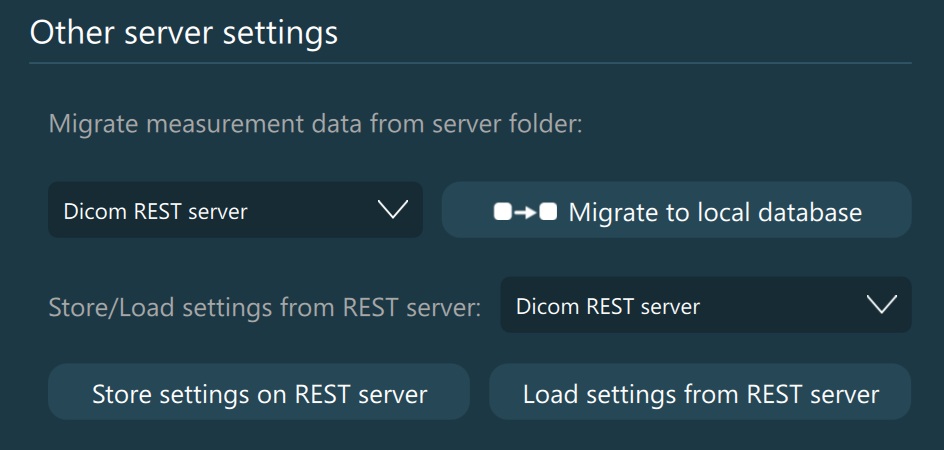
Migrate Measurement Data from Server: Migrate the specific measurement data for DICOM images stored on the PACS server to the local VisioVIEW storage. Choose the correct PACS server from the dropdown and press the
Migrate to Local Databasebutton to complete the migration.Import ES folder structure to Server: Some modalities generate ES studies as folder structures containing the required DICOM information in the directory name, and the files related to these studies stored as JPG/MPEG-4 files. To import these files and convert them to DICOM files, choose the desired server where these studies need to be uploaded, and press the
Import ES folder structurebutton. Choose the required directory that needs to be uploaded from the system’s file browser window and wait for the upload to complete.Import XML folder structure to Server: Some modalities generate studies as folder structures containing the required DICOM information in dedicated XML files, which are directly associated to a JPG file of the DICOM instance. To import these files and convert them to DICOM files, choose the desired server where these studies need to be uploaded, and press the
Import XML folder structurebutton. Choose the required directory that needs to be uploaded from the system’s file browser window and wait for the upload to complete. All studies will be uploaded with the XC modality.Store/Load Settings from Server: The VisioVIEW settings can be stored on the specific PACS REST servers configured in the software, offering seamless configuration between multiple instances of the VisioVIEW software, connected to the same server. Choose the appropriate PACS REST server from the dropdown and press on one of the
Store settings on REST serverorLoad settings from REST serverbuttons to complete the desired action.