Advanced Hanging Protocols
Similar to the simple hanging protocols, the advanced Hanging Protocols section allows users create, configure, delete, reorder, and apply modifications to the user viewing experience in the CT Viewer, and they
are only applicable to CT and MR modality studies and series. Mark protocols as selected by pressing on the desired entry or deselect a protocol by holding the CTRL key and pressing on the selected entry.
Protected advanced Hanging Protocols are predefined system protocols that cannot be modified or deleted. They are marked with the label Protected and ensure consistency and compatibility between versions of the software.
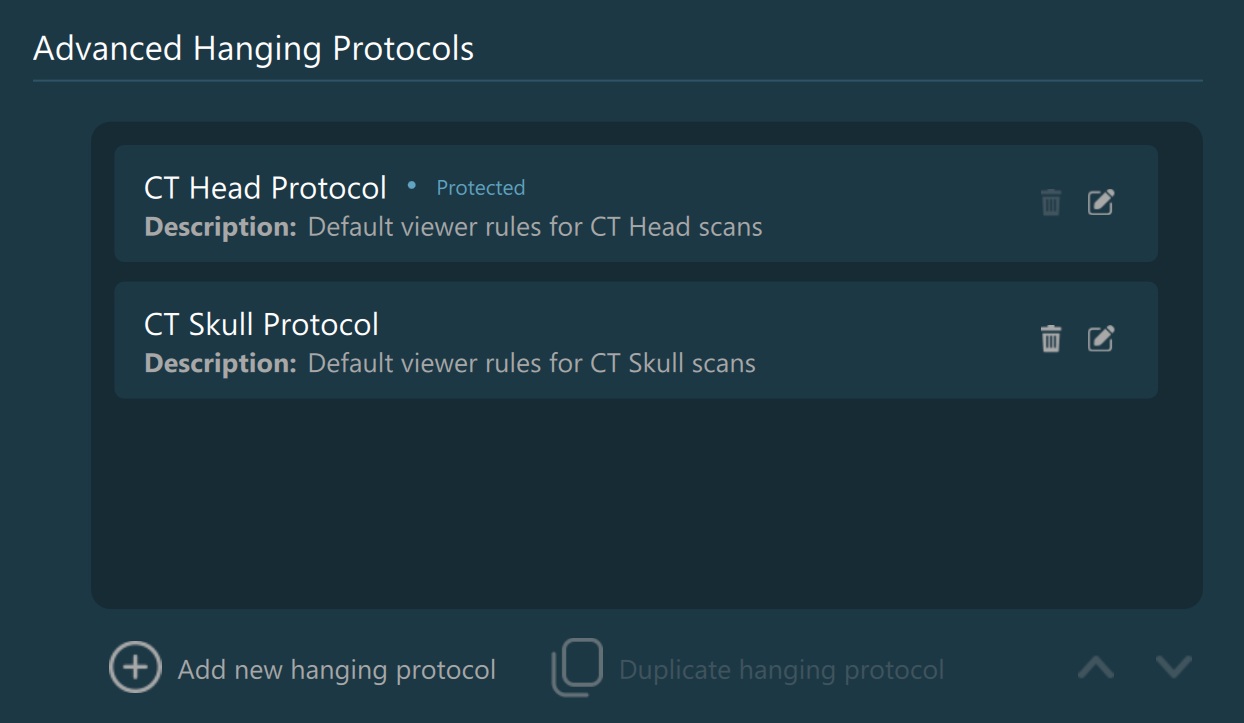
Advanced Hanging Protocol Actions

Add new Hanging Protocol: Allows the user to create a new custom advanced Hanging Protocol. The user can specify the protocol name, description and configure the CT Viewer parameters.

Duplicate Hanging Protocol: Creates an exact copy of the selected protocol. The duplicated protocol will automatically have an appended numerical suffix to its name to distinguish it from the original.


Add/Edit Advanced Hanging Protocols
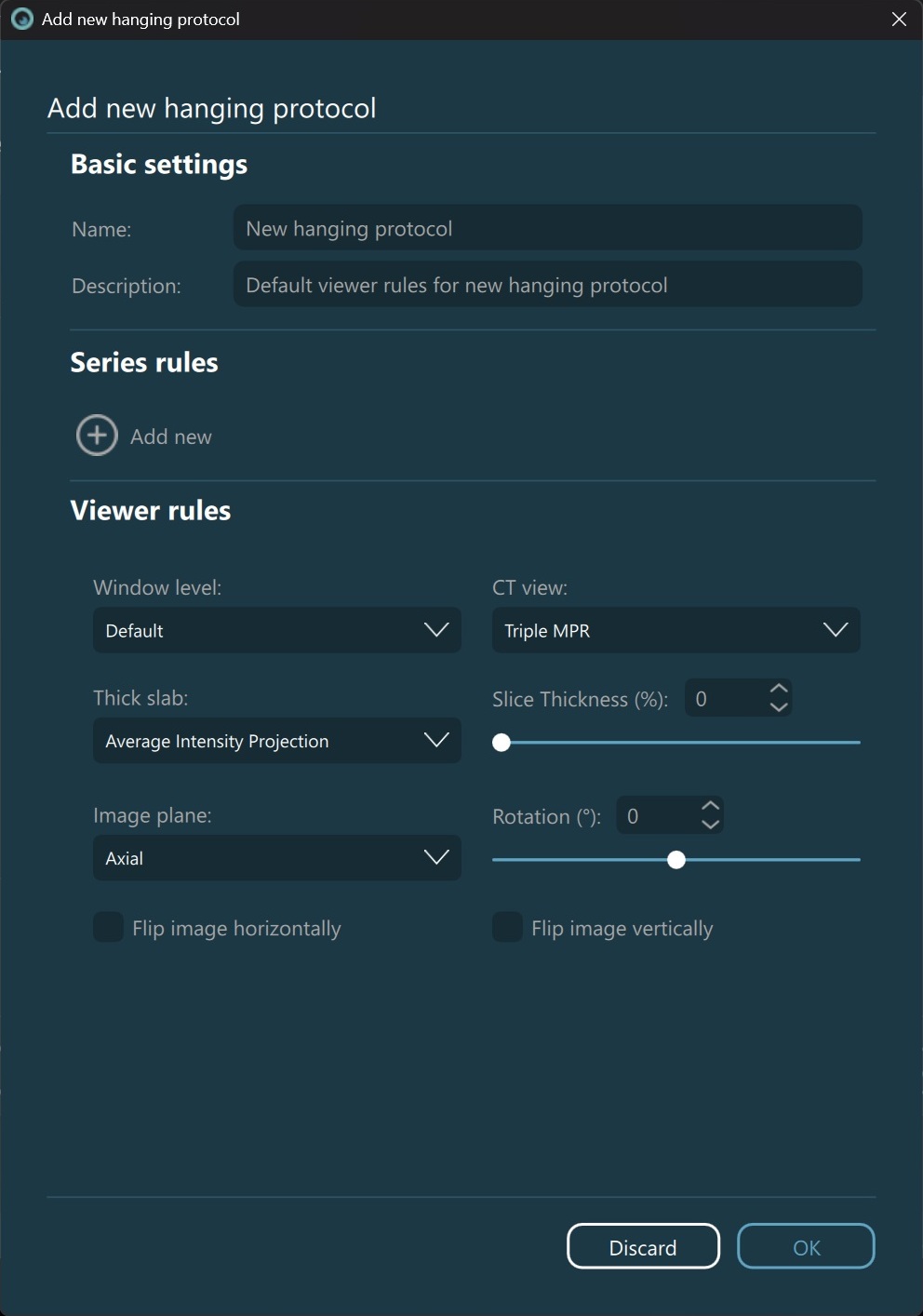
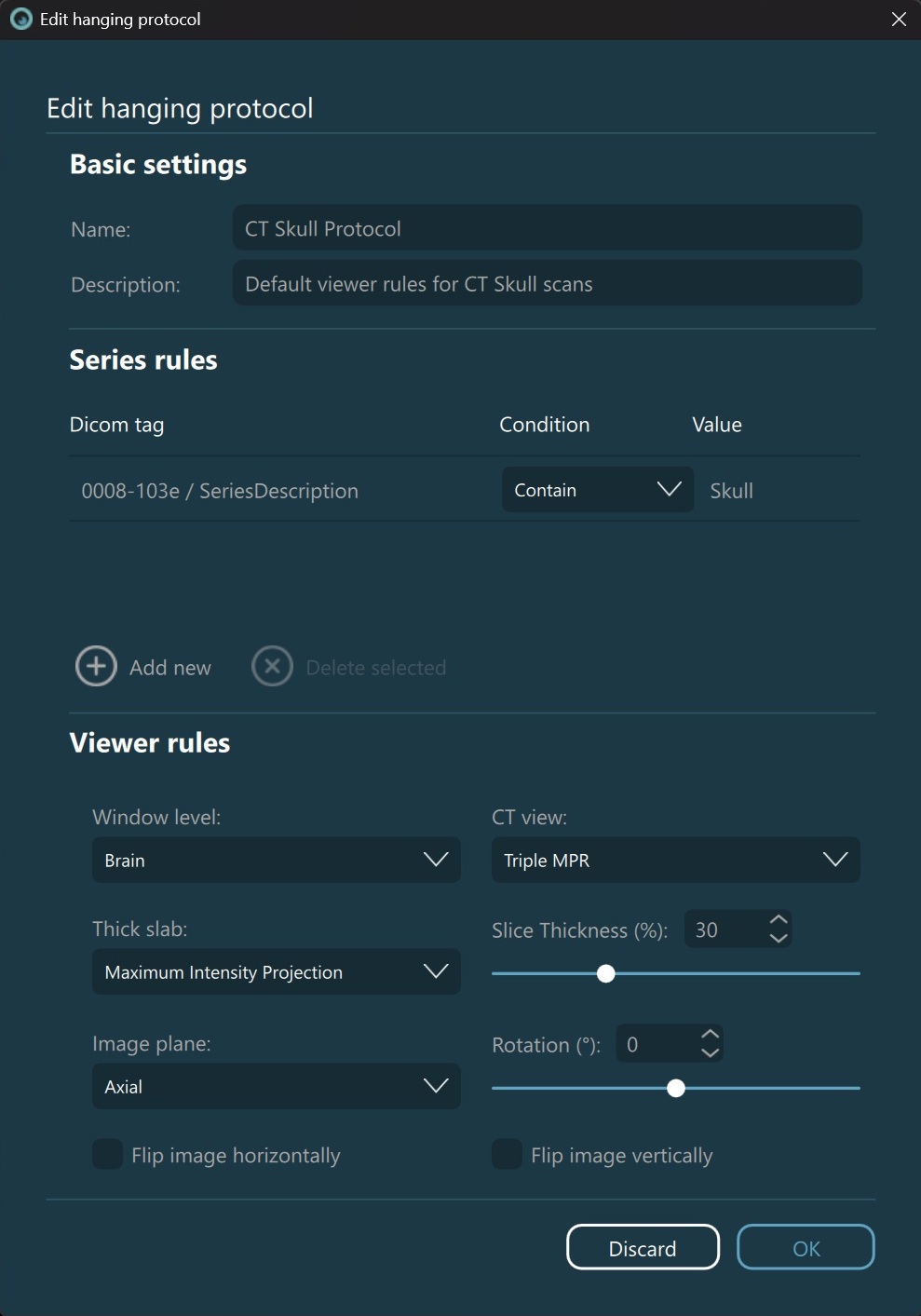
Configure the parameters that define an advanced DICOM Hanging Protocol. To close the dialog and confirm the changes, press OK. Press Discard to cancel any of the modifications and close the dialog.
Basic Settings
Name: The name of the Hanging Protocol, appearing throughout the Hanging Protocol sections of the application.
Description: Brief information describing the intended use or purpose of the protocol.
Series Rules
Specify and define the rules used to associate CT and MR modality series with the chosen advanced Hanging Protocol. Mark the specific series rule as selected by pressing on the row, or deselect it by
holding the CTRL key and pressing on the selected row.
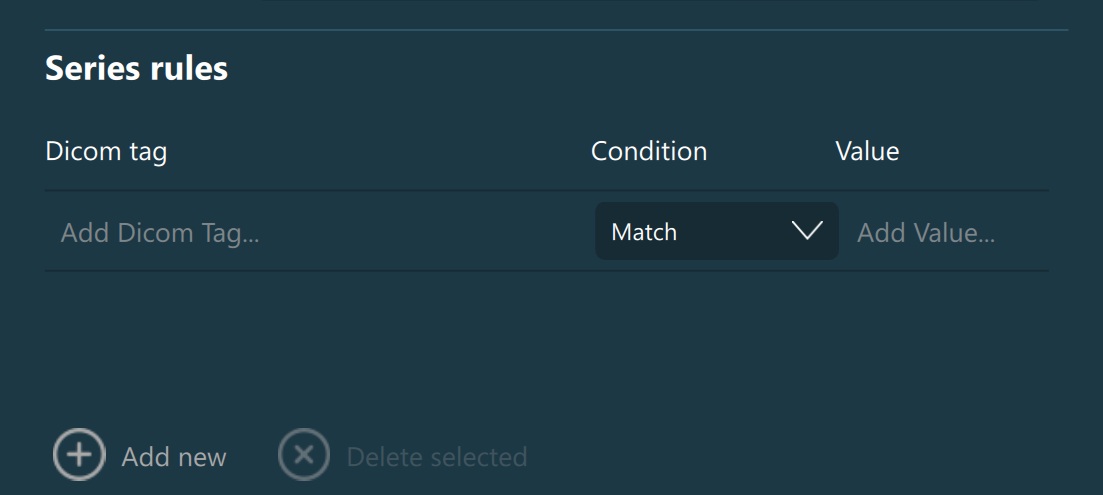
Add new: Adds a new entry into the series rules list for the chosen advanced Hanging Protocol.
Add Dicom Tag…: Double-click on the corresponding field to mark it as editable. Begin by typing a DICOM tag value/name, and a filtered list of values are displayed to autocomplete the entry.
- Condition: Choose an option from the dropdown for how the value of the selected DICOM tag should be evaluated.
Match: The DICOM tag’s value must exactly match the specified value.
Exclude: The DICOM tag’s value must not exactly match the specified value.
Begin With: The DICOM tag’s value must start with the specified value.
End With: The DICOM tag’s value must end with the specified value.
Contain: The DICOM tag’s value must contain the specified value anywhere within it.
Value: Double-click on the corresponding field to mark it as editable. Specify the text or numerical value that the selected DICOM tag will be compared against, based on the chosen condition.
Delete selected: Removes the currently selected series rule from the list.
Viewer Rules
Define and modify the configuration parameters of the chosen advanced Hanging Protocol. All parameters are directly correlated to the available options in the CT Viewer. If the CT Viewer is opened with an advanced Hanging Protocol, these configuration parameters overwrite the default CT Viewer settings.
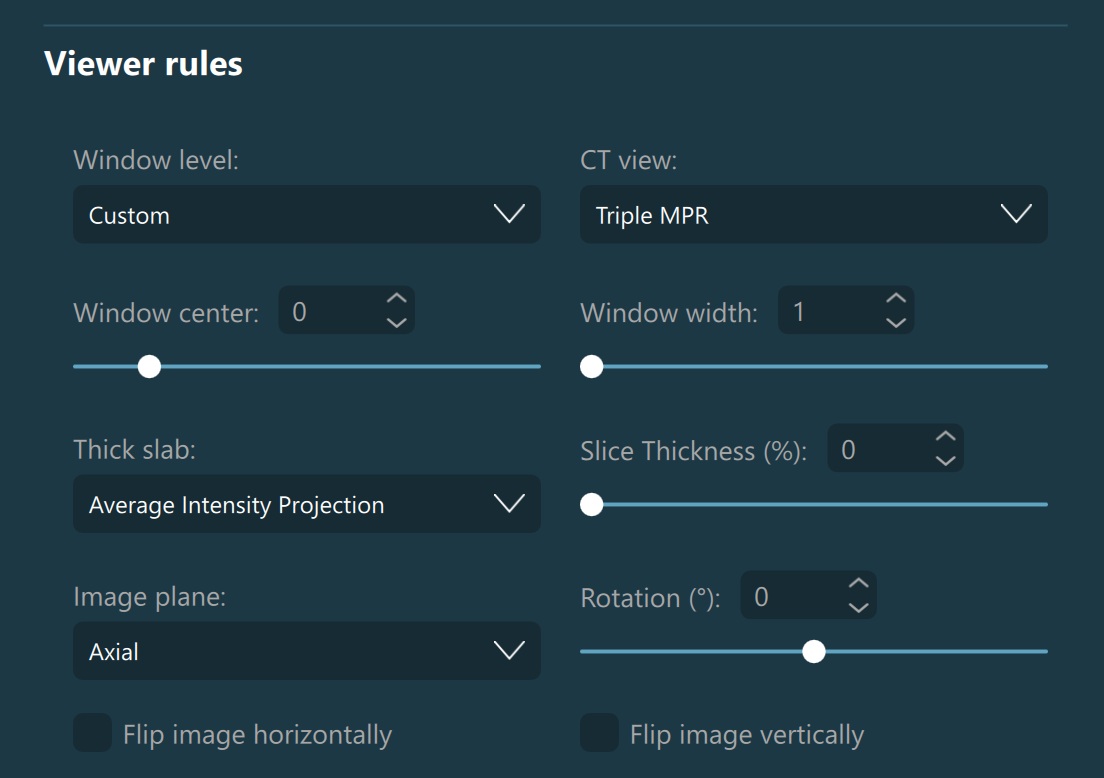
Window Level: Choose one of the available window level presets to be applied as the windowing values when opening the CT Viewer with the chosen advanced Hanging Protocol. In addition to the available presets, choose one of the Default or Dynamic options to set the windowing values based on the information in the DICOM file, or activate the Custom option to manually set the window center and window width values for the protocol.
CT View: Set the initial viewing mode of the CT Viewer when opening images with the chosen advanced Hanging Protocol. Opting out for the Single MPR mode disables the option to configure the image transformation for other planes.
Thick Slab: Set the initial thick slab mode of the CT Viewer when opening images with the chosen advanced Hanging Protocol.
Slice Thickness: Set the initial slice thickness of the CT Viewer as a percentage of the available slice thickness range, calculated based on the DICOM file information.
- Image Plane: Select one of the three available image planes (Axial, Coronal, and Sagittal) and configure the image transformation parameters respectively for each plane.
Rotation: Apply initial rotation to the selected image plane when opening the CT Viewer.
Flip Image Horizontally: Choose whether the loaded image in the selected image plane should be flipped (mirrored) horizontally (along the vertical axis).
Flip Image Vertically: Choose whether the loaded image in the selected image plane should be flipped (mirrored) vertically (along the horizontal axis).